
The Settings page allows you to control the global behavior and appearance of WowOptions across your Shopify store.
At the top of the Settings page, you will see the App Status, which indicates whether the app is visible on your storefront.
If the app is disabled, you can enable it by completing the following steps:
Both steps are required to ensure the app works properly.
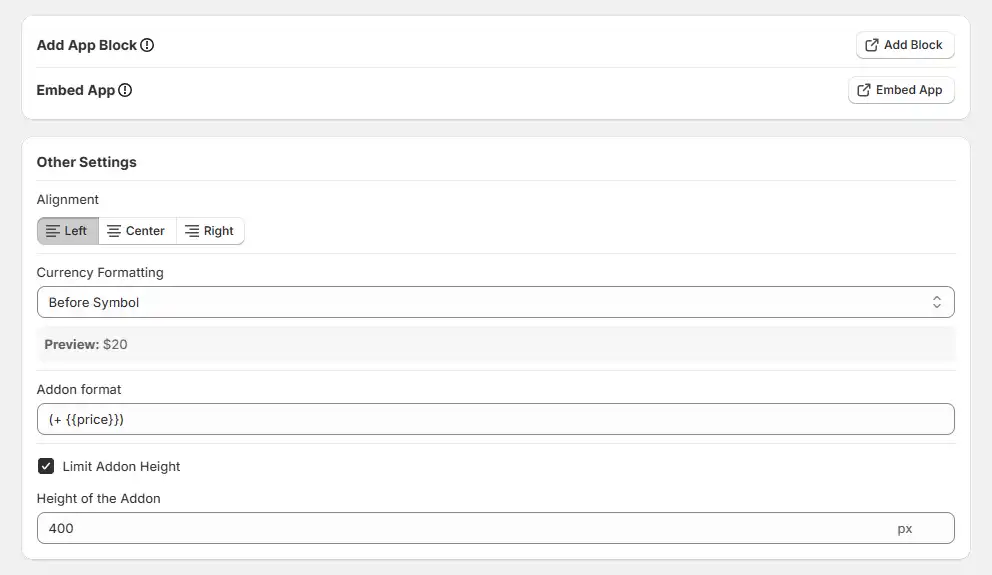
These settings control the appearance and formatting of your option fields.
Controls how the option fields are aligned on the product page.
Defines how prices are displayed alongside option fields. Available options are:
A preview is shown below the field to help you understand how it will appear.
Controls how additional prices are displayed next to options.
Example: (+ {{price}})
You can customize this format to match your store's style
Restricts the height of the options container. Enable this to prevent long option lists from expanding too much. It is especially useful for maintaining a clean layout. Defines the maximum height of the options area in pixels.
Example: 400 px
When exceeded, a scroll bar will appear
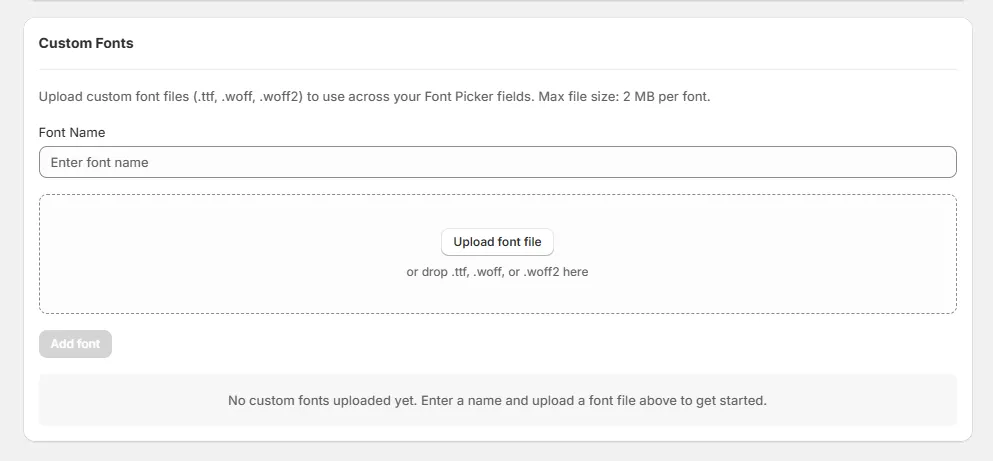
You can also upload and use custom fonts from the Custom Fonts section in Settings. Supported formats include .ttf, .woff, and .woff2. Simply assign a name, upload your font, and you're ready to go.
Explore the FAQ to learn about common issues and solutions
